> ## Documentation Index
> Fetch the complete documentation index at: https://docs.suprsend.com/llms.txt
> Use this file to discover all available pages before exploring further.
# Send DMs or post in channels via your customer's Teams app
> Route Teams DMs and channel posts through a Teams app the customer registers in their own Entra directory, using a tenant-level vendor in SuprSend.
This page covers the case where the Teams app and bot belong to **the customer**, not you. Everything else — objects for channels, users for DMs, the trigger — is the same as [Send via your Teams app](/docs/microsoft-teams-customer-workspaces). Only the credentials change at send time.
Let's say you sell to a hospital network or a bank. Their security team won't approve a third-party bot in their Entra directory. Instead, they register *their own* Teams app in *their* directory, hand you its credentials, and expect every Teams message for their account to come from that app.
## Key concepts
| In your product | In SuprSend | Example |
| :- | :- | :- |
| **Customer organization** | **[Tenant](/docs/tenants)**, required here — it's what the customer's bot credentials attach to. Pass `tenant_id` on every trigger for that customer. | `tenant_id: "customer-a"` |
| **Customer's bot credentials** | **[Tenant vendor](/docs/tenant-vendor)** for Microsoft Teams on that tenant. Overrides your default vendor for this customer's sends. | App ID, secret, App Type, Tenant ID |
| **Monitored service** (any resource that owns a channel) | **[Object](/docs/objects)** with an `$ms_teams` entry holding the channel's `conversation_id`. | `services` / `api-prod` → `#incidents` |
| **Person to DM** | **[User](/docs/users)** with an `$ms_teams` entry holding their `user_id`, on a [per-tenant profile](/docs/user-tenant-mapping). | `distinct_id: "on-call-engineer"` |
| **Customer's Microsoft Entra directory** | `tenant_id` inside each `$ms_teams` entry — optional here. Sends for this tenant already use *their* vendor, whose home Tenant ID is their directory, so SuprSend falls back to that if you leave it out. | `c1981ab2-9aaf-4f36-8c1e-7d2a54e0b3f9` |
## 1. The customer creates the Teams app
Point their IT team at [Create a Teams app](/docs/microsoft-teams-create-app). They run those steps in their own Azure and Teams Developer Portal, with three differences from your own setup:
* **Supported account types** can stay single-directory (`AzureADMyOrg`). This bot never leaves their tenant.
* Azure Bot **App Type** is still **Single tenant**.
* They send you the **Application (client) ID**, **client secret**, and **Directory (tenant) ID**. The app package stays with them — their admins install it from their own org catalog.
If they'd rather you provision it, the [Azure CLI script](/docs/microsoft-teams-create-app#alternative-create-the-bot-with-the-azure-cli) on that page works in a subscription they grant you access to; use `--sign-in-audience AzureADMyOrg`.
## 2. The customer installs the app in their tenant
Their admin uploads the app package in **Teams admin center → Teams apps → Manage apps → Upload new app**, then gives it permission to send:
* **DMs** — add the app to the *Global* setup policy under **Teams apps → Setup policies → Installed apps**, so it's installed in personal scope for everyone.
* **Channel posts** — @mention the bot once in each channel you'll post in, which installs the app in that team.
This is the same as Option A on [Send via your Teams app](/docs/microsoft-teams-customer-workspaces#give-the-app-permission-to-send-dms-and-post-in-channels). Because the app is theirs and lives in their catalog, there's no Store listing or `.zip` from your side.
## 3. Save their credentials on a tenant vendor
Create the SuprSend tenant for this customer if it doesn't exist:
```bash theme={"system"}
curl -X POST "https://hub.suprsend.com/v1/tenant/customer-a/" \
--header "Authorization: Bearer __API_KEY__" \
--header "Content-Type: application/json" \
--data '{ "tenant_name": "Customer A" }'
```
Then open **Vendors → Microsoft Teams** with **that tenant selected** in the tenant switcher ([open vendors](https://app.suprsend.com/en/staging/vendors/)) and fill in *their* values:
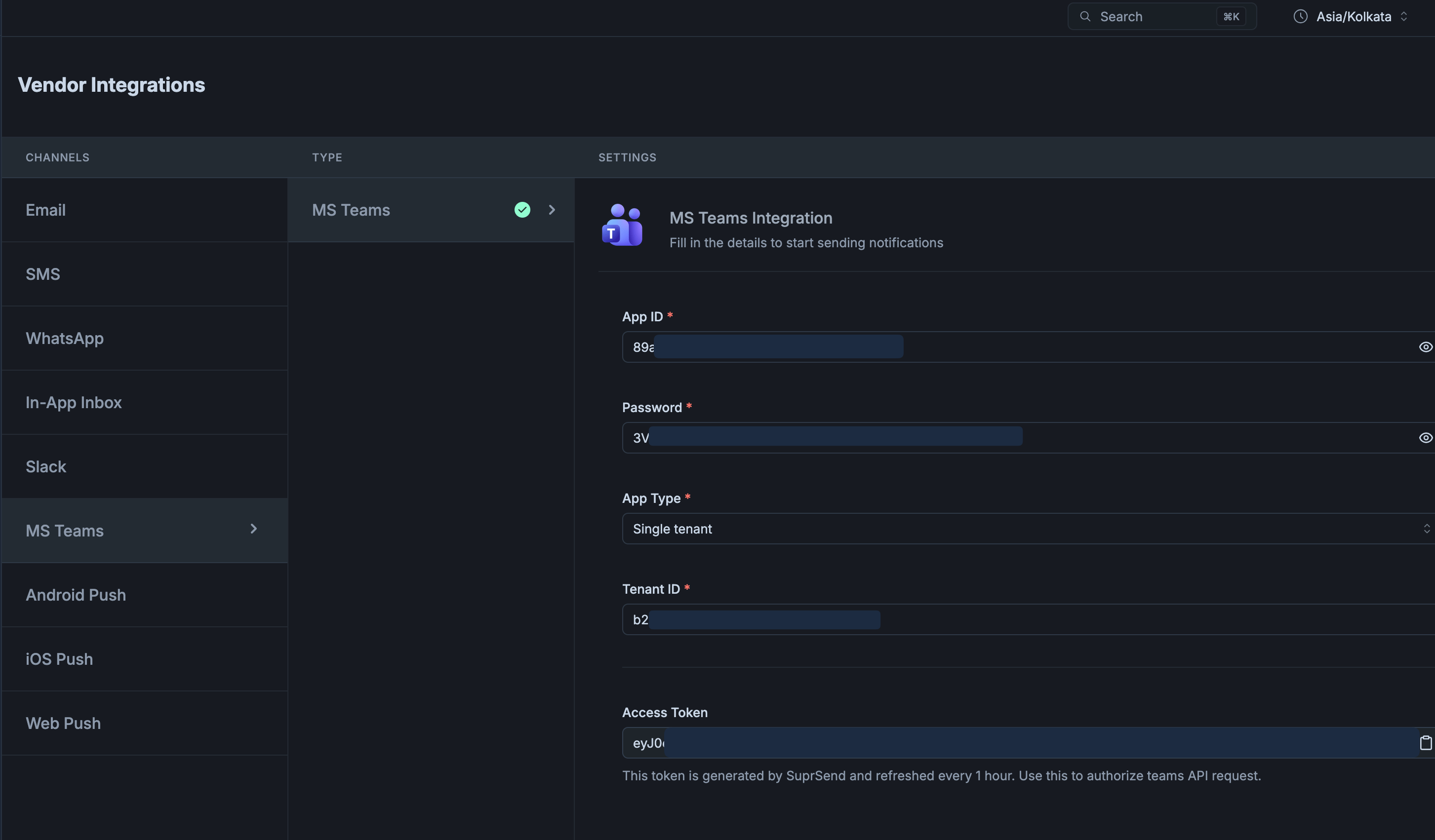 | Field | Value |
| - | - |
| **Application (client) ID** | Their bot's App ID |
| **Password** | Their client secret |
| **App Type** | Matches **their** Azure Bot — `Single tenant` for new bots |
| **Tenant ID** | **Their** Directory (tenant) ID |
After you save, SuprSend logs in with these credentials and shows the result in the **Access Token** field. Empty means the login failed — usually a wrong Tenant ID. Filled means it worked, but a mismatched App Type can still fail every send with `401`, so send a test before going further.
Your default (workspace) vendor stays as *your* bot for customers who install your app. Only customers who bring their own app get a tenant vendor. Passing `tenant_id: "customer-a"` on a trigger is what selects their vendor.
There isn't a public API for the vendor form today; set it in the dashboard. Tenant-vendor API access is in beta — email [support@suprsend.com](mailto:support@suprsend.com) if you need it.
## 4. Save Teams channels and users in SuprSend
Channels go on the service object, DMs on the user's per-tenant profile — the same as the your-app path. Collecting the IDs works the same way too; see [In production, fetch the IDs automatically with Graph](/docs/microsoft-teams-customer-workspaces#in-production-fetch-the-ids-automatically-with-graph).
```bash Channel on object theme={"system"}
curl -X POST "https://hub.suprsend.com/v1/object/services/api-prod/" \
--header "Authorization: Bearer __API_KEY__" \
--header "Content-Type: application/json" \
--data '{
"name": "API production",
"$ms_teams": [{
"tenant_id": "c1981ab2-9aaf-4f36-8c1e-7d2a54e0b3f9",
"conversation_id": "19:abc123def@thread.tacv2"
}]
}'
```
```bash DM on user (per-tenant) theme={"system"}
curl -X POST "https://hub.suprsend.com/v1/user/on-call-engineer/tenant/customer-a/" \
--header "Authorization: Bearer __API_KEY__" \
--header "Content-Type: application/json" \
--data '{
"$ms_teams": [{
"tenant_id": "c1981ab2-9aaf-4f36-8c1e-7d2a54e0b3f9",
"user_id": "3fa85f64-5717-4562-b3fc-2c963f66afa6"
}]
}'
```
`tenant_id` on the entry is optional on this path, because the tenant vendor already knows their directory. Including it is harmless and keeps the entries identical to the your-app path.
Don't put `incoming_webhook` on these recipients. Webhooks ignore tenant vendors and fire for every URL on the profile.
## 5. Trigger a workflow
Create a workflow (for example `new-incident`) with a **multi-channel** or **MS Teams** node connected to a [Teams template](/docs/ms-teams-template). Trigger it with the service object and the on-call user as recipients, and **always** pass the customer's `tenant_id` — that's what routes the send through their vendor:
```json theme={"system"}
{
"workflow": "new-incident",
"tenant_id": "customer-a",
"recipients": [
{ "object_type": "services", "id": "api-prod" },
"on-call-engineer"
],
"data": { "severity": "high", "summary": "API p99 > 2s" }
}
```
SuprSend authenticates as the customer's bot, posts to the channel on `api-prod`, and DMs the on-call engineer from their per-tenant `$ms_teams` entry.
If everything works, the channel post and the DM arrive from **the customer's** app name, not yours. You can also check **Logs → Messages** in SuprSend for the delivery and later statuses — the tenant column shows which customer's vendor was used.
## FAQs
Yes. Customers who install your app use the default vendor; customers who bring their own app get a tenant vendor. The trigger's `tenant_id` decides which vendor a send uses — the same workflow and templates serve both.
The trigger didn't pass `tenant_id`, or that tenant has no Microsoft Teams vendor. Without a tenant vendor, SuprSend uses the default workspace vendor — yours.
**App Type** on their tenant vendor doesn't match their Azure Bot. Bots created after 31 July 2025 are single-tenant.
**Tenant ID** on the vendor form isn't the directory where they registered the bot. Use their Directory (tenant) ID.
The app is in their tenant but not installed in the team that owns that channel. Their admin @mentions the bot once in the channel, or installs the app in the team.
## Next
How per-tenant credentials override the default vendor, for Teams and every other channel.
Keep a user's Teams identity separate for each customer they belong to.
This documentation is built and hosted on [Mintlify](https://mintlify.com), a developer documentation platform.
| Field | Value |
| - | - |
| **Application (client) ID** | Their bot's App ID |
| **Password** | Their client secret |
| **App Type** | Matches **their** Azure Bot — `Single tenant` for new bots |
| **Tenant ID** | **Their** Directory (tenant) ID |
After you save, SuprSend logs in with these credentials and shows the result in the **Access Token** field. Empty means the login failed — usually a wrong Tenant ID. Filled means it worked, but a mismatched App Type can still fail every send with `401`, so send a test before going further.
Your default (workspace) vendor stays as *your* bot for customers who install your app. Only customers who bring their own app get a tenant vendor. Passing `tenant_id: "customer-a"` on a trigger is what selects their vendor.
There isn't a public API for the vendor form today; set it in the dashboard. Tenant-vendor API access is in beta — email [support@suprsend.com](mailto:support@suprsend.com) if you need it.
## 4. Save Teams channels and users in SuprSend
Channels go on the service object, DMs on the user's per-tenant profile — the same as the your-app path. Collecting the IDs works the same way too; see [In production, fetch the IDs automatically with Graph](/docs/microsoft-teams-customer-workspaces#in-production-fetch-the-ids-automatically-with-graph).
```bash Channel on object theme={"system"}
curl -X POST "https://hub.suprsend.com/v1/object/services/api-prod/" \
--header "Authorization: Bearer __API_KEY__" \
--header "Content-Type: application/json" \
--data '{
"name": "API production",
"$ms_teams": [{
"tenant_id": "c1981ab2-9aaf-4f36-8c1e-7d2a54e0b3f9",
"conversation_id": "19:abc123def@thread.tacv2"
}]
}'
```
```bash DM on user (per-tenant) theme={"system"}
curl -X POST "https://hub.suprsend.com/v1/user/on-call-engineer/tenant/customer-a/" \
--header "Authorization: Bearer __API_KEY__" \
--header "Content-Type: application/json" \
--data '{
"$ms_teams": [{
"tenant_id": "c1981ab2-9aaf-4f36-8c1e-7d2a54e0b3f9",
"user_id": "3fa85f64-5717-4562-b3fc-2c963f66afa6"
}]
}'
```
`tenant_id` on the entry is optional on this path, because the tenant vendor already knows their directory. Including it is harmless and keeps the entries identical to the your-app path.
Don't put `incoming_webhook` on these recipients. Webhooks ignore tenant vendors and fire for every URL on the profile.
## 5. Trigger a workflow
Create a workflow (for example `new-incident`) with a **multi-channel** or **MS Teams** node connected to a [Teams template](/docs/ms-teams-template). Trigger it with the service object and the on-call user as recipients, and **always** pass the customer's `tenant_id` — that's what routes the send through their vendor:
```json theme={"system"}
{
"workflow": "new-incident",
"tenant_id": "customer-a",
"recipients": [
{ "object_type": "services", "id": "api-prod" },
"on-call-engineer"
],
"data": { "severity": "high", "summary": "API p99 > 2s" }
}
```
SuprSend authenticates as the customer's bot, posts to the channel on `api-prod`, and DMs the on-call engineer from their per-tenant `$ms_teams` entry.
If everything works, the channel post and the DM arrive from **the customer's** app name, not yours. You can also check **Logs → Messages** in SuprSend for the delivery and later statuses — the tenant column shows which customer's vendor was used.
## FAQs
Yes. Customers who install your app use the default vendor; customers who bring their own app get a tenant vendor. The trigger's `tenant_id` decides which vendor a send uses — the same workflow and templates serve both.
The trigger didn't pass `tenant_id`, or that tenant has no Microsoft Teams vendor. Without a tenant vendor, SuprSend uses the default workspace vendor — yours.
**App Type** on their tenant vendor doesn't match their Azure Bot. Bots created after 31 July 2025 are single-tenant.
**Tenant ID** on the vendor form isn't the directory where they registered the bot. Use their Directory (tenant) ID.
The app is in their tenant but not installed in the team that owns that channel. Their admin @mentions the bot once in the channel, or installs the app in the team.
## Next
How per-tenant credentials override the default vendor, for Teams and every other channel.
Keep a user's Teams identity separate for each customer they belong to.
This documentation is built and hosted on [Mintlify](https://mintlify.com), a developer documentation platform.