> ## Documentation Index
> Fetch the complete documentation index at: https://docs.suprsend.com/llms.txt
> Use this file to discover all available pages before exploring further.
# Send DMs or post in channels via your Teams app
> Let customers install your Teams app so you can DM people and post in their channels.
This page covers sending as **your** Microsoft Teams bot into a customer's tenant: direct messages to people, and posts in channels.
Let's say you are building an incident product like PagerDuty. When an alert fires on a customer's `api-prod` service, two things should happen in *their* Teams:
* The on-call engineer gets a **DM** from your bot.
* `#incidents` gets the same alert, so the rest of the team can see it.
## Key concepts
| In your product | In SuprSend | Example |
| :- | :- | :- |
| **Customer organization** | **[Tenant](/docs/tenants)**, optional. Create tenants only if you need per-customer branding, preferences, or [vendor credentials](/docs/tenant-vendor), or if a user belongs to several customers and needs a [tenant-specific Teams channel](/docs/user-tenant-mapping). Pass `tenant_id` on the trigger when you do. | `tenant_id: "customer-a"` |
| **Monitored service** (any resource that owns a channel) | **[Object](/docs/objects)** with an `$ms_teams` entry holding the channel's `conversation_id`. | `services` / `api-prod` → `#incidents` |
| **Person to DM** | **[User](/docs/users)** with an `$ms_teams` entry holding their `user_id`. Use a [per-tenant profile](/docs/user-tenant-mapping) if they belong to more than one customer. | `distinct_id: "on-call-engineer"` |
| **Customer's Microsoft Entra directory** | `tenant_id` inside each `$ms_teams` entry. Needed here because one workspace serves many customer directories — without it, SuprSend uses your bot's home tenant. | `c1981ab2-9aaf-4f36-8c1e-7d2a54e0b3f9` |
## 1. Create the Teams app
Follow [Create a Teams app and add the vendor](/docs/microsoft-teams-create-app) to register the bot, build the app package, and save its credentials on the Microsoft Teams vendor in SuprSend.
You set up the vendor once, with *your* bot's App ID, secret, App Type, and home Tenant ID. That single vendor serves every customer who installs your app — nothing on it changes per customer, and the customer's Entra ID never goes on this form. The customer's directory is identified by the `tenant_id` on each recipient's `$ms_teams` entry.
## 2. Make your app installable by customers
When you [create the Teams app](/docs/microsoft-teams-create-app), set **Supported account types** to **Multiple Entra ID tenants** (step 4 on that page) so customer admins can consent. Then add the bot scopes you'll use to the manifest — **personal** for DMs, **team** for channel posts:
```json theme={"system"}
{
"bots": [
{
"botId": "{{YOUR_BOT_ID}}",
"scopes": ["personal", "team", "groupChat"]
}
]
}
```
## 3. Install the app in the customer's tenant
A Teams admin on the customer's side does this, in two stages: the app is added to their organization, then it's given permission to DM users and post in channels.
### Expose your app for install
Your customer's admin installs your Teams app in their workspace. Three ways to offer it:
| Option | When it fits |
| - | - |
| **Upload the `.zip`** — download it from the [Developer Portal](https://dev.teams.microsoft.com/) and offer it on your settings page. The admin uploads it in **Teams admin center → Teams apps → Manage apps → Upload new app** | Pilots, a few enterprise customers, or while your Teams Store listing is under review |
| **Teams Store** — the admin searches for your app in the Store and adds it | Self-serve, many customers. Microsoft reviews the listing before it goes live |
| **Graph API** — your product uploads the `.zip` to their org catalog after admin consent | Install should complete inside your product without an IT ticket. See *Automate with Graph* below |
Whichever option you use, an administrator in the customer's organization has to approve the app — end users can't consent on their own until your app registration has a verified publisher.
Store listing is a Microsoft process, separate from SuprSend. Budget a few weeks for the first submission.
1. **Complete the app package** in the Developer Portal — name, icons, descriptions, privacy and terms URLs, bot scopes and permissions.
2. **Register in [Microsoft Partner Center](https://partner.microsoft.com/)** and get a Publisher ID for your company. Store apps need a verified publisher.
3. **Submit for validation** from the Developer Portal (**Publish → Publish to the Teams Store**) or directly in Partner Center. Microsoft runs automated checks and a manual review against its [Teams app validation guidelines](https://learn.microsoft.com/en-us/microsoftteams/platform/concepts/deploy-and-publish/appsource/prepare/teams-store-validation-guidelines).
4. **Fix and resubmit** if the review raises issues. One or two rounds is normal.
5. **Once approved, the app is listed.** Customer admins find it under **Apps** in Teams and add it — no `.zip` from you. Every app update goes through the same review.
Offer the `.zip` upload until the Store listing is live.
### Give the app permission to send DMs and post in channels
Adding the app to the org catalog doesn't put it in front of anyone yet. The bot can only DM people who have the app installed, and only post in channels of teams the app is added to. You can get there manually, which is fine for testing, or automate it from your product, which is what you'll want in production.
#### Option A: manual, in Teams — good for testing
The customer's admin does two things:
1. **Enable DMs** — in **Teams admin center → Teams apps → Setup policies**, edit the *Global* policy (or one assigned to the relevant users) and add your app under **Installed apps**. Teams installs it in personal scope for everyone the policy covers, so any of them can receive DMs.
2. **Enable channel posts** — **@mention the bot once in each channel you'll post in.** That adds the bot to the channel and, if needed, installs the app in the team.
This is enough to prove the integration works. Some enterprise customers will also prefer to keep control this way in production — the setup policy is an admin-only control that Graph can't set, so it stays available as a path.
#### Option B: automated from your product — recommended
After the admin grants consent, your product installs the app where it's needed through Graph, so "Connect Teams" finishes in your UI without the admin clicking around in Teams:
* **Channel posts** — install the app in the team that owns the channel. The bot can then post to any standard channel in that team. Private and shared channels need the app added to that channel specifically.
* **DMs** — install the app for each user when they enable Teams notifications in your product.
The calls are in *Automate with Graph* below.
### Automate with Graph (optional)
To finish install from inside your product, first send the admin to the consent URL:
```text theme={"system"}
https://login.microsoftonline.com/{customer-entra-tenant-id}/adminconsent?client_id={YOUR_APP_ID}
```
Then, with a Graph token for the customer's tenant, upload the app to their catalog and install it in the team:
```bash theme={"system"}
# 1. Upload the app package to the customer's org catalog
curl -X POST "https://graph.microsoft.com/v1.0/appCatalogs/teamsApps" \
-H "Authorization: Bearer $GRAPH_TOKEN" \
-H "Content-Type: application/zip" \
--data-binary @incident-alerts.zip
# 2. Install it in the team that owns the channel (enables channel posts)
curl -X POST "https://graph.microsoft.com/v1.0/teams/$TEAM_ID/installedApps" \
-H "Authorization: Bearer $GRAPH_TOKEN" \
-H "Content-Type: application/json" \
-d "{
\"teamsApp@odata.bind\": \"https://graph.microsoft.com/v1.0/appCatalogs/teamsApps/$TEAMS_APP_ID\"
}"
```
`$TEAMS_APP_ID` is the catalog id returned by the upload — different from your Entra client id.
For DMs, install the app for the user when they enable Teams notifications in your product, or right before their first DM. If the app is already installed for them (for example through a setup policy), Graph returns `409 Conflict` — treat that as success:
```bash theme={"system"}
# 3. Install for a single user in personal scope (enables DMs to that user)
curl -X POST "https://graph.microsoft.com/v1.0/users/$USER_ID/teamwork/installedApps" \
-H "Authorization: Bearer $GRAPH_TOKEN" \
-H "Content-Type: application/json" \
-d "{
\"teamsApp@odata.bind\": \"https://graph.microsoft.com/v1.0/appCatalogs/teamsApps/$TEAMS_APP_ID\"
}"
```
`$USER_ID` is the person's Entra object ID — the same value you store as `user_id` on their `$ms_teams` entry. See **Users** under *In production, fetch the IDs automatically with Graph* in step 4 for how to obtain it.
These calls need application permissions on your app registration, granted through the admin consent above: `AppCatalog.ReadWrite.All` for the upload, `TeamsAppInstallation.ReadWriteForTeam.All` for the team install, and `TeamsAppInstallation.ReadWriteForUser.All` for the user install.
## 4. Save Teams channels and users in SuprSend
Every recipient needs an `$ms_teams` entry with the customer's Entra `tenant_id` and either a channel's `conversation_id` or a person's `user_id`. For a first test, copy them by hand. In production, your product collects them through Graph after the app is installed and writes them to SuprSend.
### For a first test, copy the IDs by hand
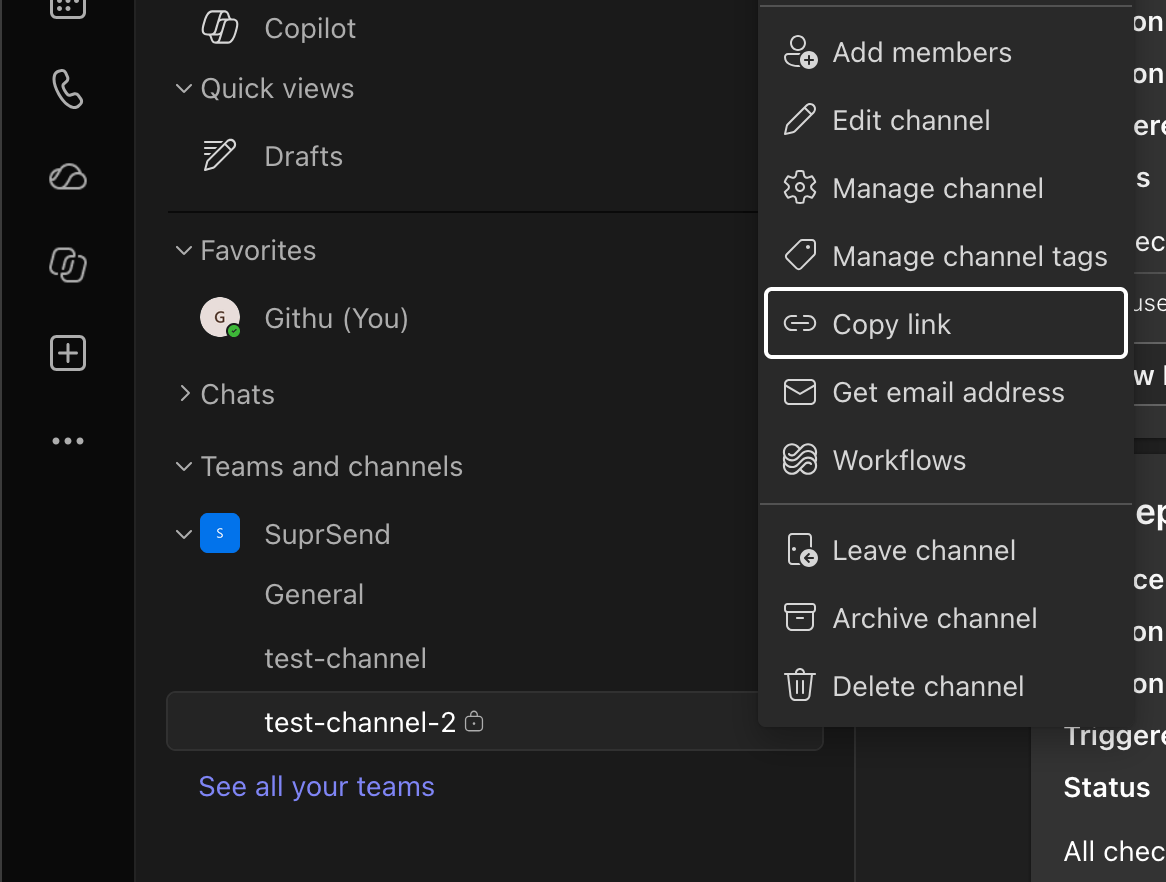
To prove the bot can post in the customer's tenant, a channel post is enough. Grab the two IDs from a channel link:
1. In the customer's Teams, hover the channel → **⋯** → **Copy link**.
2. Decode `%3A` → `:` and `%40` → `@`. That's `conversation_id`.
3. The link's `tenantId=` query parameter is the customer's Entra `tenant_id`.
 Add them as an `$ms_teams` entry on a test user, then trigger a test with that user as the recipient. A `conversation_id` works for a personal chat too — copy the link from the chat instead of a channel. The object form is in *Save the IDs in SuprSend* below.
```bash theme={"system"}
curl -X POST "https://hub.suprsend.com/v1/user/test-user/" \
--header "Authorization: Bearer __API_KEY__" \
--header "Content-Type: application/json" \
--data '{
"$ms_teams": [{
"tenant_id": "c1981ab2-9aaf-4f36-8c1e-7d2a54e0b3f9",
"conversation_id": "19:abc123def@thread.tacv2"
}]
}'
```
### In production, fetch the IDs automatically with Graph
Once the admin has consented, your product can look up everything it needs in the customer's tenant:
* **Entra tenant ID** — comes back as the `tenant` query parameter on the admin consent redirect. If users sign in to your product with Microsoft, it's also the `tid` claim on their ID token. Store it against the customer account; you'll write it as `tenant_id` on every entry.
* **Channels** — list the teams, let the customer pick one, then list its channels and show them as a picker:
```bash theme={"system"}
# Teams in the tenant
curl -X GET "https://graph.microsoft.com/v1.0/groups?\$filter=resourceProvisioningOptions/Any(x:x eq 'Team')&\$select=id,displayName" \
-H "Authorization: Bearer $GRAPH_TOKEN"
# Channels in the chosen team
curl -X GET "https://graph.microsoft.com/v1.0/teams/$TEAM_ID/channels" \
-H "Authorization: Bearer $GRAPH_TOKEN"
```
Each channel's `id` is the `conversation_id` you store, already decoded. Needs `Team.ReadBasic.All` and `Channel.ReadBasic.All`.
* **Users** — the `user_id` you store is the person's Entra object ID, a stable GUID in the customer's directory. Three ways to get it:
* **From Microsoft sign-in.** If users log in to your product with Entra ID, the ID token's `oid` claim is the object ID (and `tid` is the tenant ID). You have it the moment they sign in — no extra call.
* **Look it up by email.** Your product already knows the user's work email:
```bash theme={"system"}
curl -X GET "https://graph.microsoft.com/v1.0/users/$USER_EMAIL" \
-H "Authorization: Bearer $GRAPH_TOKEN"
```
The `id` field in the response is the object ID. Needs `User.Read.All`.
* **From the team roster.** `GET /teams/$TEAM_ID/members` returns each member's `userId` — useful for a "choose who to DM" picker scoped to a team. Needs `TeamMember.Read.All`.
Don't store the `29:...` id the Bot Framework roster returns. It's tied to this bot registration and breaks if you recreate the bot.
### Save the IDs in SuprSend
When the customer picks a channel for a service, save it on the object. When a user turns on Teams DMs, save their identity on their user — on the per-tenant profile if they belong to more than one customer.
```bash Channel on object theme={"system"}
curl -X POST "https://hub.suprsend.com/v1/object/services/api-prod/" \
--header "Authorization: Bearer __API_KEY__" \
--header "Content-Type: application/json" \
--data '{
"name": "API production",
"$ms_teams": [{
"tenant_id": "c1981ab2-9aaf-4f36-8c1e-7d2a54e0b3f9",
"conversation_id": "19:abc123def@thread.tacv2"
}]
}'
```
```bash DM on user (per-tenant) theme={"system"}
curl -X POST "https://hub.suprsend.com/v1/user/on-call-engineer/tenant/customer-a/" \
--header "Authorization: Bearer __API_KEY__" \
--header "Content-Type: application/json" \
--data '{
"$ms_teams": [{
"tenant_id": "c1981ab2-9aaf-4f36-8c1e-7d2a54e0b3f9",
"user_id": "3fa85f64-5717-4562-b3fc-2c963f66afa6"
}]
}'
```
The per-tenant route writes the Teams identity on the **customer-a** profile only, so an incident for another customer doesn't use this DM — see [User-tenant mapping](/docs/user-tenant-mapping). Posting to `/v1/user/{distinct_id}/` without the `/tenant/{tenant_id}/` segment writes the global profile instead, which is used across all tenant sends.
`service_url` is optional. Omit it for commercial Microsoft 365 tenants; set it only if the customer is on a Microsoft US Government cloud (GCC High or DoD), which uses its own endpoints.
## 5. Trigger a workflow
Create a workflow (for example `new-incident`) with either a **multi-channel** node or an **MS Teams** node, and connect it to a [Teams template](/docs/ms-teams-template).
```json theme={"system"}
{
"workflow": "new-incident",
"tenant_id": "customer-a",
"recipients": [
{ "object_type": "services", "id": "api-prod" },
"on-call-engineer"
],
"data": { "severity": "high", "summary": "API p99 > 2s" }
}
```
SuprSend reads the `$ms_teams` entry on each recipient: the object's `conversation_id` becomes the channel post and the user's `user_id` becomes the DM.
If everything works, the channel shows the post and the on-call engineer gets a DM. You can also check **Logs → Messages** in SuprSend for the delivery and later statuses.
## FAQs
No. The app has to be in the user's personal scope first — either through a Teams setup policy that installs it for everyone, or a per-user Graph install when they enable Teams notifications in your product. Until then the DM fails.
Only if you didn't install the app in the team through Graph. The @mention is just another way of installing it in the team. Once the app is in the team, the bot can post to any standard channel there. Private and shared channels are the exception — the app has to be added to those channels specifically.
The vendor's **App Type** doesn't match the Azure bot. A bot created after 31 July 2025 is single-tenant; saving it as `Multi tenant` on the vendor form still returns a token but every send gets a `401`.
Either the app isn't installed in their tenant, or `$ms_teams.tenant_id` is missing or still points to your own directory. Write the customer's Entra tenant ID as `tenant_id` on the entry.
The app is in the customer's tenant but not installed in the team that owns that channel. Install it in the team through Graph, or have someone @mention the bot once in the channel — either one fixes it.
Those are Bot Framework roster ids, tied to the bot registration. If you recreate the bot they stop resolving. Switch to Entra object IDs as `user_id` — see **Users** under *In production, fetch the IDs automatically with Graph*.
## Next
Write the message in Markdown, or build an Adaptive Card in the JSONNET editor.
For customers who won't allow a third-party bot: they register the app in their own Entra directory and you save its credentials on a tenant vendor.
This documentation is built and hosted on [Mintlify](https://mintlify.com), a developer documentation platform.
Add them as an `$ms_teams` entry on a test user, then trigger a test with that user as the recipient. A `conversation_id` works for a personal chat too — copy the link from the chat instead of a channel. The object form is in *Save the IDs in SuprSend* below.
```bash theme={"system"}
curl -X POST "https://hub.suprsend.com/v1/user/test-user/" \
--header "Authorization: Bearer __API_KEY__" \
--header "Content-Type: application/json" \
--data '{
"$ms_teams": [{
"tenant_id": "c1981ab2-9aaf-4f36-8c1e-7d2a54e0b3f9",
"conversation_id": "19:abc123def@thread.tacv2"
}]
}'
```
### In production, fetch the IDs automatically with Graph
Once the admin has consented, your product can look up everything it needs in the customer's tenant:
* **Entra tenant ID** — comes back as the `tenant` query parameter on the admin consent redirect. If users sign in to your product with Microsoft, it's also the `tid` claim on their ID token. Store it against the customer account; you'll write it as `tenant_id` on every entry.
* **Channels** — list the teams, let the customer pick one, then list its channels and show them as a picker:
```bash theme={"system"}
# Teams in the tenant
curl -X GET "https://graph.microsoft.com/v1.0/groups?\$filter=resourceProvisioningOptions/Any(x:x eq 'Team')&\$select=id,displayName" \
-H "Authorization: Bearer $GRAPH_TOKEN"
# Channels in the chosen team
curl -X GET "https://graph.microsoft.com/v1.0/teams/$TEAM_ID/channels" \
-H "Authorization: Bearer $GRAPH_TOKEN"
```
Each channel's `id` is the `conversation_id` you store, already decoded. Needs `Team.ReadBasic.All` and `Channel.ReadBasic.All`.
* **Users** — the `user_id` you store is the person's Entra object ID, a stable GUID in the customer's directory. Three ways to get it:
* **From Microsoft sign-in.** If users log in to your product with Entra ID, the ID token's `oid` claim is the object ID (and `tid` is the tenant ID). You have it the moment they sign in — no extra call.
* **Look it up by email.** Your product already knows the user's work email:
```bash theme={"system"}
curl -X GET "https://graph.microsoft.com/v1.0/users/$USER_EMAIL" \
-H "Authorization: Bearer $GRAPH_TOKEN"
```
The `id` field in the response is the object ID. Needs `User.Read.All`.
* **From the team roster.** `GET /teams/$TEAM_ID/members` returns each member's `userId` — useful for a "choose who to DM" picker scoped to a team. Needs `TeamMember.Read.All`.
Don't store the `29:...` id the Bot Framework roster returns. It's tied to this bot registration and breaks if you recreate the bot.
### Save the IDs in SuprSend
When the customer picks a channel for a service, save it on the object. When a user turns on Teams DMs, save their identity on their user — on the per-tenant profile if they belong to more than one customer.
```bash Channel on object theme={"system"}
curl -X POST "https://hub.suprsend.com/v1/object/services/api-prod/" \
--header "Authorization: Bearer __API_KEY__" \
--header "Content-Type: application/json" \
--data '{
"name": "API production",
"$ms_teams": [{
"tenant_id": "c1981ab2-9aaf-4f36-8c1e-7d2a54e0b3f9",
"conversation_id": "19:abc123def@thread.tacv2"
}]
}'
```
```bash DM on user (per-tenant) theme={"system"}
curl -X POST "https://hub.suprsend.com/v1/user/on-call-engineer/tenant/customer-a/" \
--header "Authorization: Bearer __API_KEY__" \
--header "Content-Type: application/json" \
--data '{
"$ms_teams": [{
"tenant_id": "c1981ab2-9aaf-4f36-8c1e-7d2a54e0b3f9",
"user_id": "3fa85f64-5717-4562-b3fc-2c963f66afa6"
}]
}'
```
The per-tenant route writes the Teams identity on the **customer-a** profile only, so an incident for another customer doesn't use this DM — see [User-tenant mapping](/docs/user-tenant-mapping). Posting to `/v1/user/{distinct_id}/` without the `/tenant/{tenant_id}/` segment writes the global profile instead, which is used across all tenant sends.
`service_url` is optional. Omit it for commercial Microsoft 365 tenants; set it only if the customer is on a Microsoft US Government cloud (GCC High or DoD), which uses its own endpoints.
## 5. Trigger a workflow
Create a workflow (for example `new-incident`) with either a **multi-channel** node or an **MS Teams** node, and connect it to a [Teams template](/docs/ms-teams-template).
```json theme={"system"}
{
"workflow": "new-incident",
"tenant_id": "customer-a",
"recipients": [
{ "object_type": "services", "id": "api-prod" },
"on-call-engineer"
],
"data": { "severity": "high", "summary": "API p99 > 2s" }
}
```
SuprSend reads the `$ms_teams` entry on each recipient: the object's `conversation_id` becomes the channel post and the user's `user_id` becomes the DM.
If everything works, the channel shows the post and the on-call engineer gets a DM. You can also check **Logs → Messages** in SuprSend for the delivery and later statuses.
## FAQs
No. The app has to be in the user's personal scope first — either through a Teams setup policy that installs it for everyone, or a per-user Graph install when they enable Teams notifications in your product. Until then the DM fails.
Only if you didn't install the app in the team through Graph. The @mention is just another way of installing it in the team. Once the app is in the team, the bot can post to any standard channel there. Private and shared channels are the exception — the app has to be added to those channels specifically.
The vendor's **App Type** doesn't match the Azure bot. A bot created after 31 July 2025 is single-tenant; saving it as `Multi tenant` on the vendor form still returns a token but every send gets a `401`.
Either the app isn't installed in their tenant, or `$ms_teams.tenant_id` is missing or still points to your own directory. Write the customer's Entra tenant ID as `tenant_id` on the entry.
The app is in the customer's tenant but not installed in the team that owns that channel. Install it in the team through Graph, or have someone @mention the bot once in the channel — either one fixes it.
Those are Bot Framework roster ids, tied to the bot registration. If you recreate the bot they stop resolving. Switch to Entra object IDs as `user_id` — see **Users** under *In production, fetch the IDs automatically with Graph*.
## Next
Write the message in Markdown, or build an Adaptive Card in the JSONNET editor.
For customers who won't allow a third-party bot: they register the app in their own Entra directory and you save its credentials on a tenant vendor.
This documentation is built and hosted on [Mintlify](https://mintlify.com), a developer documentation platform.