> ## Documentation Index
> Fetch the complete documentation index at: https://docs.suprsend.com/llms.txt
> Use this file to discover all available pages before exploring further.
# Post to a Teams channel with a webhook
> Let a customer map a resource in your product to one Teams channel by pasting a Workflows webhook URL. Workflows posts the message.
This page covers posting into a single Microsoft Teams channel using a Workflows incoming webhook.
Let's say you are building a product like GitHub. A customer wants deploy events for their `payments-api` repository posted in their `#deploys` channel — nothing more. Their Teams admin creates a webhook for the channel and pastes the URL into your product.
In SuprSend, you store that URL on an [object](/docs/objects) representing the repository, and trigger workflows with the object as the recipient.
If you also need to DM people, post in several channels as a bot they can @mention, or appear as an installed app, use [Send using your Teams app](/docs/microsoft-teams-customer-workspaces) instead.
## Teams channels are connections on objects
[Objects](/docs/objects) represent non-human entities in your product — a repository, a project, a service. You group them by `object_type` and give each one an `id`. Here, the type is `repositories` and the id is `payments-api`.
The webhook URL is stored as `$ms_teams` on that repository object, not on a user. If the engineer who set it up leaves the company, `#deploys` should still receive `payments-api` events.
```python theme={"system"}
from suprsend import Suprsend
supr_client = Suprsend("WORKSPACE_KEY", "WORKSPACE_SECRET")
supr_client.objects.upsert("repositories", "payments-api", {
"name": "Payments API",
})
```
## 1. Save the vendor
Follow [Create a Teams app and add the vendor](/docs/microsoft-teams-create-app) doc.
## 2. Create a Workflows webhook in Teams
Office 365 connectors are retired. Create the URL with **Workflows**.
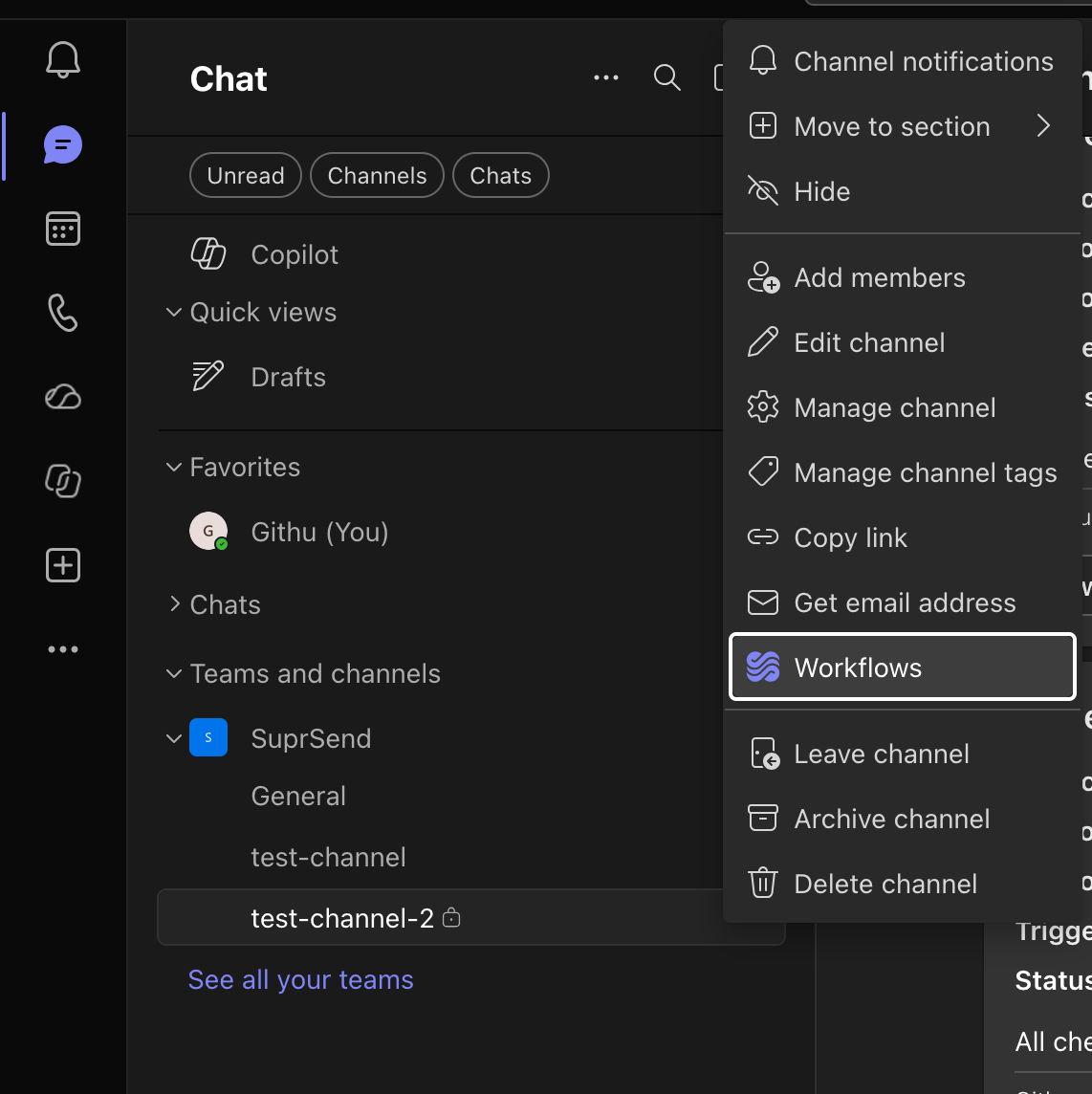
In the channel you want to post to, open **⋯** → **Workflows**.
 Search for **webhook** and pick **Send webhook alerts to a channel**. Choose the channel, save, then **Copy webhook link**.
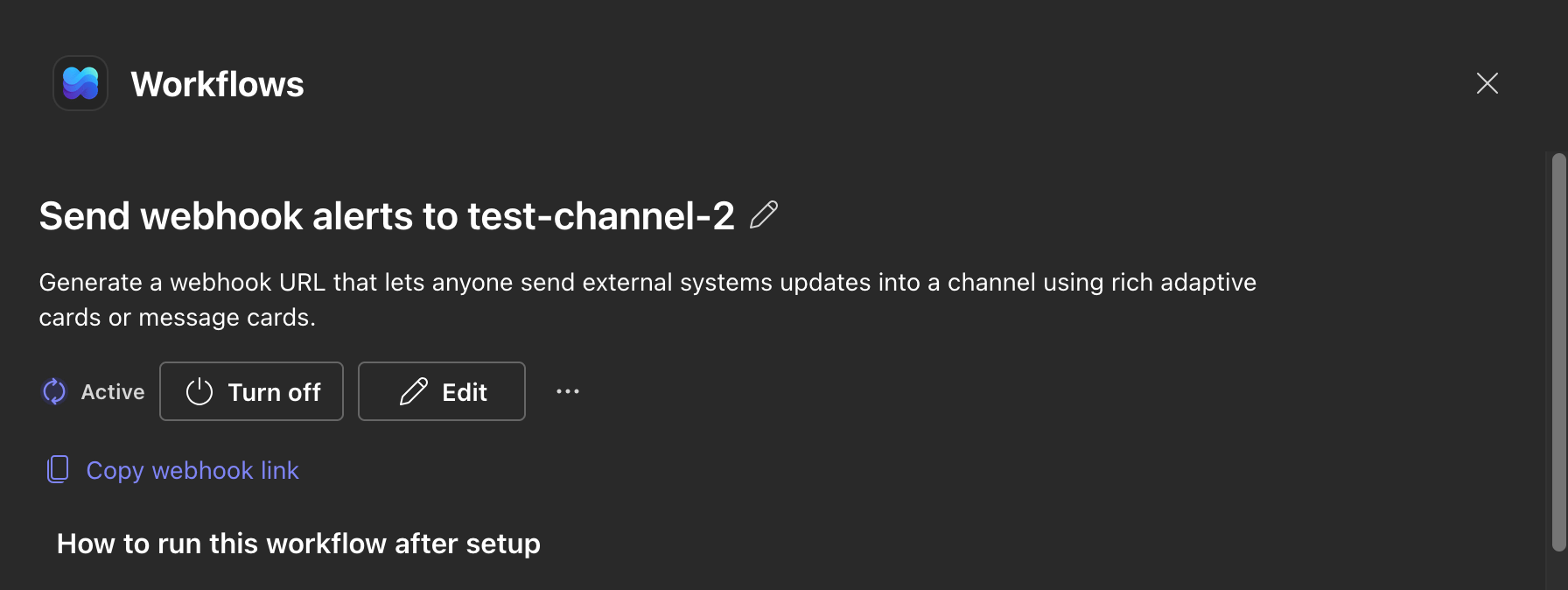 The URL embeds a `sig=` token that authorises posts, so treat it like a secret. These templates don't need a premium Power Automate licence.
In your product, all you need is a settings field where the customer pastes this URL. No OAuth flow required.
## 3. Store the URL on the object
```python Python theme={"system"}
from suprsend import Suprsend
supr_client = Suprsend("WORKSPACE_KEY", "WORKSPACE_SECRET")
supr_client.objects.upsert("repositories", "payments-api", {
"name": "Payments API",
"$ms_teams": [{
"incoming_webhook": {
"url": "https://defaultXXXX.XX.environment.api.powerplatform.com/powerautomate/automations/direct/workflows/XXXX/triggers/manual/paths/invoke?api-version=1&sig=XXXX"
}
}]
})
```
```javascript Node.js theme={"system"}
const { Suprsend } = require("@suprsend/node-sdk");
const supr_client = new Suprsend("WORKSPACE_KEY", "WORKSPACE_SECRET");
const repo = supr_client.objects.get_instance("repositories", "payments-api");
repo.add_ms_teams({
incoming_webhook: {
url: "https://defaultXXXX.XX.environment.api.powerplatform.com/powerautomate/automations/direct/workflows/XXXX/triggers/manual/paths/invoke?api-version=1&sig=XXXX"
}
});
supr_client.objects.edit(repo).then((res) => console.log(res));
```
If `add_ms_teams` includes a webhook URL *and* bot fields (`conversation_id`, `user_id`), only the webhook is kept. Precedence is `incoming_webhook.url` > `conversation_id` > `user_id`. Don't mix them on the same object.
## 4. Trigger a workflow with the object as recipient
Next, create a workflow (for example `new-deploy`) with either a **multi-channel** node or an **MS Teams** node, and connect it to a [Teams template](/docs/ms-teams-template).
Trigger it with the repository object as the recipient:
```python Python theme={"system"}
from suprsend import Suprsend, WorkflowTriggerRequest
supr_client = Suprsend("WORKSPACE_KEY", "WORKSPACE_SECRET")
w = WorkflowTriggerRequest(body={
"workflow": "new-deploy",
"recipients": [{
"object_type": "repositories",
"id": "payments-api",
}],
"data": {
"sha": "a1b2c3d",
"environment": "production",
},
})
print(supr_client.workflows.trigger(w))
```
```javascript Node.js theme={"system"}
const { Suprsend, WorkflowTriggerRequest } = require("@suprsend/node-sdk");
const supr_client = new Suprsend("WORKSPACE_KEY", "WORKSPACE_SECRET");
const w = new WorkflowTriggerRequest({
workflow: "new-deploy",
recipients: [{ object_type: "repositories", id: "payments-api" }],
data: { sha: "a1b2c3d", environment: "production" },
});
supr_client.workflows.trigger(w).then((res) => console.log(res));
```
Write the Teams template in **JSONNET**, not Markdown. A Workflows webhook only renders Adaptive Cards, and Markdown templates produce plain text, which the webhook silently drops.
Set the card `version` to **1.4 or 1.5**. Version 1.6 works through a bot but not through a webhook — the request is accepted and Teams posts "We're sorry, this card couldn't be displayed" instead of your card.
The URL embeds a `sig=` token that authorises posts, so treat it like a secret. These templates don't need a premium Power Automate licence.
In your product, all you need is a settings field where the customer pastes this URL. No OAuth flow required.
## 3. Store the URL on the object
```python Python theme={"system"}
from suprsend import Suprsend
supr_client = Suprsend("WORKSPACE_KEY", "WORKSPACE_SECRET")
supr_client.objects.upsert("repositories", "payments-api", {
"name": "Payments API",
"$ms_teams": [{
"incoming_webhook": {
"url": "https://defaultXXXX.XX.environment.api.powerplatform.com/powerautomate/automations/direct/workflows/XXXX/triggers/manual/paths/invoke?api-version=1&sig=XXXX"
}
}]
})
```
```javascript Node.js theme={"system"}
const { Suprsend } = require("@suprsend/node-sdk");
const supr_client = new Suprsend("WORKSPACE_KEY", "WORKSPACE_SECRET");
const repo = supr_client.objects.get_instance("repositories", "payments-api");
repo.add_ms_teams({
incoming_webhook: {
url: "https://defaultXXXX.XX.environment.api.powerplatform.com/powerautomate/automations/direct/workflows/XXXX/triggers/manual/paths/invoke?api-version=1&sig=XXXX"
}
});
supr_client.objects.edit(repo).then((res) => console.log(res));
```
If `add_ms_teams` includes a webhook URL *and* bot fields (`conversation_id`, `user_id`), only the webhook is kept. Precedence is `incoming_webhook.url` > `conversation_id` > `user_id`. Don't mix them on the same object.
## 4. Trigger a workflow with the object as recipient
Next, create a workflow (for example `new-deploy`) with either a **multi-channel** node or an **MS Teams** node, and connect it to a [Teams template](/docs/ms-teams-template).
Trigger it with the repository object as the recipient:
```python Python theme={"system"}
from suprsend import Suprsend, WorkflowTriggerRequest
supr_client = Suprsend("WORKSPACE_KEY", "WORKSPACE_SECRET")
w = WorkflowTriggerRequest(body={
"workflow": "new-deploy",
"recipients": [{
"object_type": "repositories",
"id": "payments-api",
}],
"data": {
"sha": "a1b2c3d",
"environment": "production",
},
})
print(supr_client.workflows.trigger(w))
```
```javascript Node.js theme={"system"}
const { Suprsend, WorkflowTriggerRequest } = require("@suprsend/node-sdk");
const supr_client = new Suprsend("WORKSPACE_KEY", "WORKSPACE_SECRET");
const w = new WorkflowTriggerRequest({
workflow: "new-deploy",
recipients: [{ object_type: "repositories", id: "payments-api" }],
data: { sha: "a1b2c3d", environment: "production" },
});
supr_client.workflows.trigger(w).then((res) => console.log(res));
```
Write the Teams template in **JSONNET**, not Markdown. A Workflows webhook only renders Adaptive Cards, and Markdown templates produce plain text, which the webhook silently drops.
Set the card `version` to **1.4 or 1.5**. Version 1.6 works through a bot but not through a webhook — the request is accepted and Teams posts "We're sorry, this card couldn't be displayed" instead of your card.
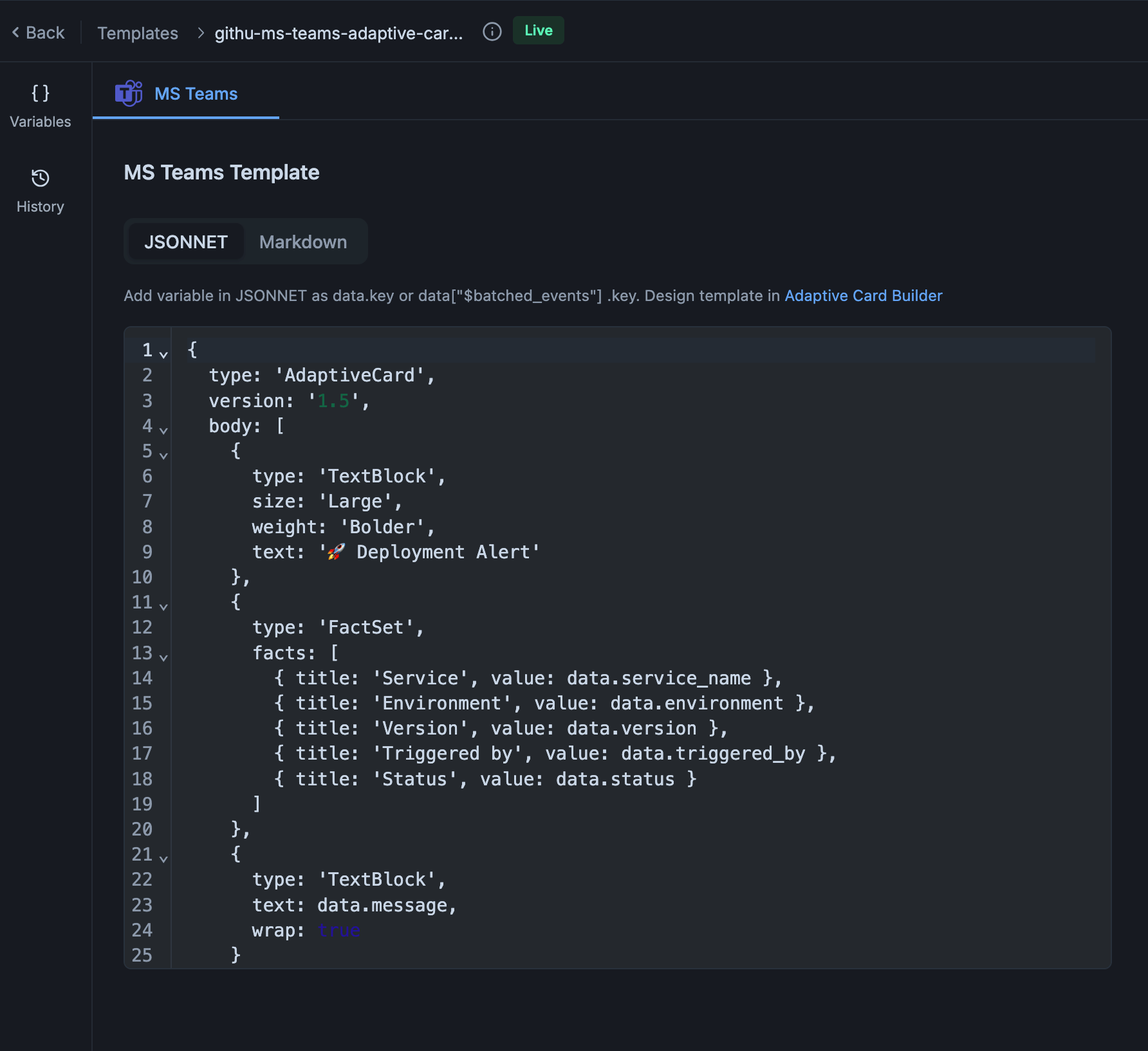 If you already have a Markdown template, recreate it in JSONNET as a single `TextBlock` so the same content works over both the bot and the webhook:
```json theme={"system"}
{
"type": "AdaptiveCard",
"version": "1.5",
"body": [{ "type": "TextBlock", "text": "Deployment finished", "wrap": true }]
}
```
If you'd rather keep using Markdown templates — they're easier for your team to edit — you can build a custom Workflows flow in Teams instead of the "Send webhook alerts" template. The flow checks the incoming payload and posts a card when there is one, or plain text otherwise.
If you already have a Markdown template, recreate it in JSONNET as a single `TextBlock` so the same content works over both the bot and the webhook:
```json theme={"system"}
{
"type": "AdaptiveCard",
"version": "1.5",
"body": [{ "type": "TextBlock", "text": "Deployment finished", "wrap": true }]
}
```
If you'd rather keep using Markdown templates — they're easier for your team to edit — you can build a custom Workflows flow in Teams instead of the "Send webhook alerts" template. The flow checks the incoming payload and posts a card when there is one, or plain text otherwise.
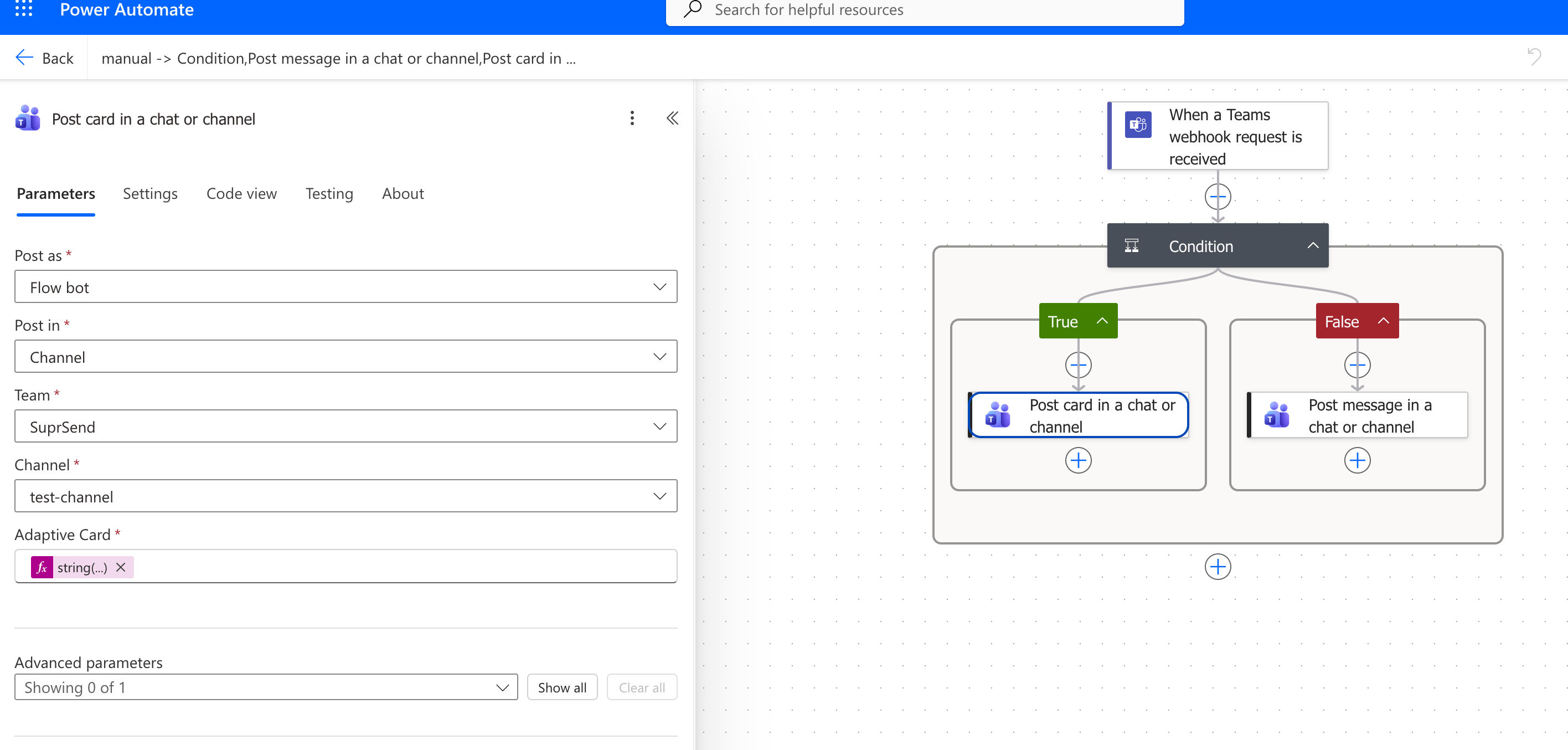 1. Trigger: **When a Teams webhook request is received**
2. Add a **Condition**, with this expression on the left and *is greater than* `0` on the right:
```
length(coalesce(triggerBody()?['attachments'], json('[]')))
```
3. **If yes** — **Post card in a chat or channel**, set **Adaptive Card** to:
```
string(first(triggerBody()?['attachments'])?['content'])
```
4. **If no** — **Post message in a chat or channel**, set the message to:
```
triggerBody()?['text']
```
The condition counts `attachments` on the request. SuprSend sends a card there and plain text in `text`. `coalesce` supplies an empty array when `attachments` is absent, which stops the expression erroring on a text-only payload.
If everything works, you'll see the message in your Teams channel. You can also check **Logs → Messages** in SuprSend for the delivery and later statuses.
One caveat: for Markdown templates the log shows a successful delivery but Teams silently drops the message, and cards above version 1.5 show an error card. So confirm in the channel, not just the logs.
## Troubleshooting
Teams accepted the request and then dropped it. Two causes:
* The template is in **Markdown**. A Workflows webhook only renders Adaptive Cards. Switch the template to JSONNET, or build the custom flow described above.
* The card `version` is **1.6 or higher**. Set it to `1.4` or `1.5`.
The webhook URL didn't accept the request. Check, in order:
* The URL on the object is complete and includes the `sig=` token.
* The Workflows flow still exists and is turned on in Teams. Flows are owned by the person who created them — if that person left the organization or lost access to the channel, the flow stops working. Have another admin recreate it and update the URL.
* The URL is a Workflows URL, not a retired Office 365 connector URL (see below).
That's a retired Office 365 connector. Microsoft began the rollout on **18 May 2026**. Create a Workflows webhook and replace `incoming_webhook.url` on the object. The field accepts either URL shape, so migration is a URL swap. You don't have to rewrite the card.
The workflow ran but never reached the Teams channel. Open the **workflow execution log** in SuprSend — it shows which step skipped the send and why. The usual reasons:
* The template has no **MS Teams** version published. Add one and commit it.
* The recipient has no `$ms_teams` channel.
* The recipient or the tenant has **opted out** of the MS Teams channel in preferences.
* **Template rendering failed** — for example a variable the template uses is missing from `data`, or the JSONNET has a syntax error. SuprSend discards the Teams notification for that recipient.
* The **Microsoft Teams vendor** isn't enabled. Check **Vendors → Microsoft Teams** and follow [Create a Teams app and add the vendor](/docs/microsoft-teams-create-app) if it's empty.
A Workflows webhook is bound to the channel picked when the flow was created. Create a new flow on the right channel and replace the URL on the object.
The object has several `$ms_teams` entries with webhook URLs, and SuprSend posts to each. Remove the ones you don't need.
This is expected behaviour. A webhook posts through Microsoft's Workflows app, usually as **Workflows** or on behalf of the person who created the flow. To post under your own name and icon, use [Send using your Teams app](/docs/microsoft-teams-customer-workspaces).
## Next
Build the Adaptive Card in the JSONNET editor — layout, variables, and preview.
Go beyond one channel: DM people, post in any channel, and show your own name and icon.
This documentation is built and hosted on [Mintlify](https://mintlify.com), a developer documentation platform.
1. Trigger: **When a Teams webhook request is received**
2. Add a **Condition**, with this expression on the left and *is greater than* `0` on the right:
```
length(coalesce(triggerBody()?['attachments'], json('[]')))
```
3. **If yes** — **Post card in a chat or channel**, set **Adaptive Card** to:
```
string(first(triggerBody()?['attachments'])?['content'])
```
4. **If no** — **Post message in a chat or channel**, set the message to:
```
triggerBody()?['text']
```
The condition counts `attachments` on the request. SuprSend sends a card there and plain text in `text`. `coalesce` supplies an empty array when `attachments` is absent, which stops the expression erroring on a text-only payload.
If everything works, you'll see the message in your Teams channel. You can also check **Logs → Messages** in SuprSend for the delivery and later statuses.
One caveat: for Markdown templates the log shows a successful delivery but Teams silently drops the message, and cards above version 1.5 show an error card. So confirm in the channel, not just the logs.
## Troubleshooting
Teams accepted the request and then dropped it. Two causes:
* The template is in **Markdown**. A Workflows webhook only renders Adaptive Cards. Switch the template to JSONNET, or build the custom flow described above.
* The card `version` is **1.6 or higher**. Set it to `1.4` or `1.5`.
The webhook URL didn't accept the request. Check, in order:
* The URL on the object is complete and includes the `sig=` token.
* The Workflows flow still exists and is turned on in Teams. Flows are owned by the person who created them — if that person left the organization or lost access to the channel, the flow stops working. Have another admin recreate it and update the URL.
* The URL is a Workflows URL, not a retired Office 365 connector URL (see below).
That's a retired Office 365 connector. Microsoft began the rollout on **18 May 2026**. Create a Workflows webhook and replace `incoming_webhook.url` on the object. The field accepts either URL shape, so migration is a URL swap. You don't have to rewrite the card.
The workflow ran but never reached the Teams channel. Open the **workflow execution log** in SuprSend — it shows which step skipped the send and why. The usual reasons:
* The template has no **MS Teams** version published. Add one and commit it.
* The recipient has no `$ms_teams` channel.
* The recipient or the tenant has **opted out** of the MS Teams channel in preferences.
* **Template rendering failed** — for example a variable the template uses is missing from `data`, or the JSONNET has a syntax error. SuprSend discards the Teams notification for that recipient.
* The **Microsoft Teams vendor** isn't enabled. Check **Vendors → Microsoft Teams** and follow [Create a Teams app and add the vendor](/docs/microsoft-teams-create-app) if it's empty.
A Workflows webhook is bound to the channel picked when the flow was created. Create a new flow on the right channel and replace the URL on the object.
The object has several `$ms_teams` entries with webhook URLs, and SuprSend posts to each. Remove the ones you don't need.
This is expected behaviour. A webhook posts through Microsoft's Workflows app, usually as **Workflows** or on behalf of the person who created the flow. To post under your own name and icon, use [Send using your Teams app](/docs/microsoft-teams-customer-workspaces).
## Next
Build the Adaptive Card in the JSONNET editor — layout, variables, and preview.
Go beyond one channel: DM people, post in any channel, and show your own name and icon.
This documentation is built and hosted on [Mintlify](https://mintlify.com), a developer documentation platform.