
How it works
You emit one event; SuprSend fans it out to every workflow whose trigger is set to that event name, resolving the recipient, channels, and content per workflow.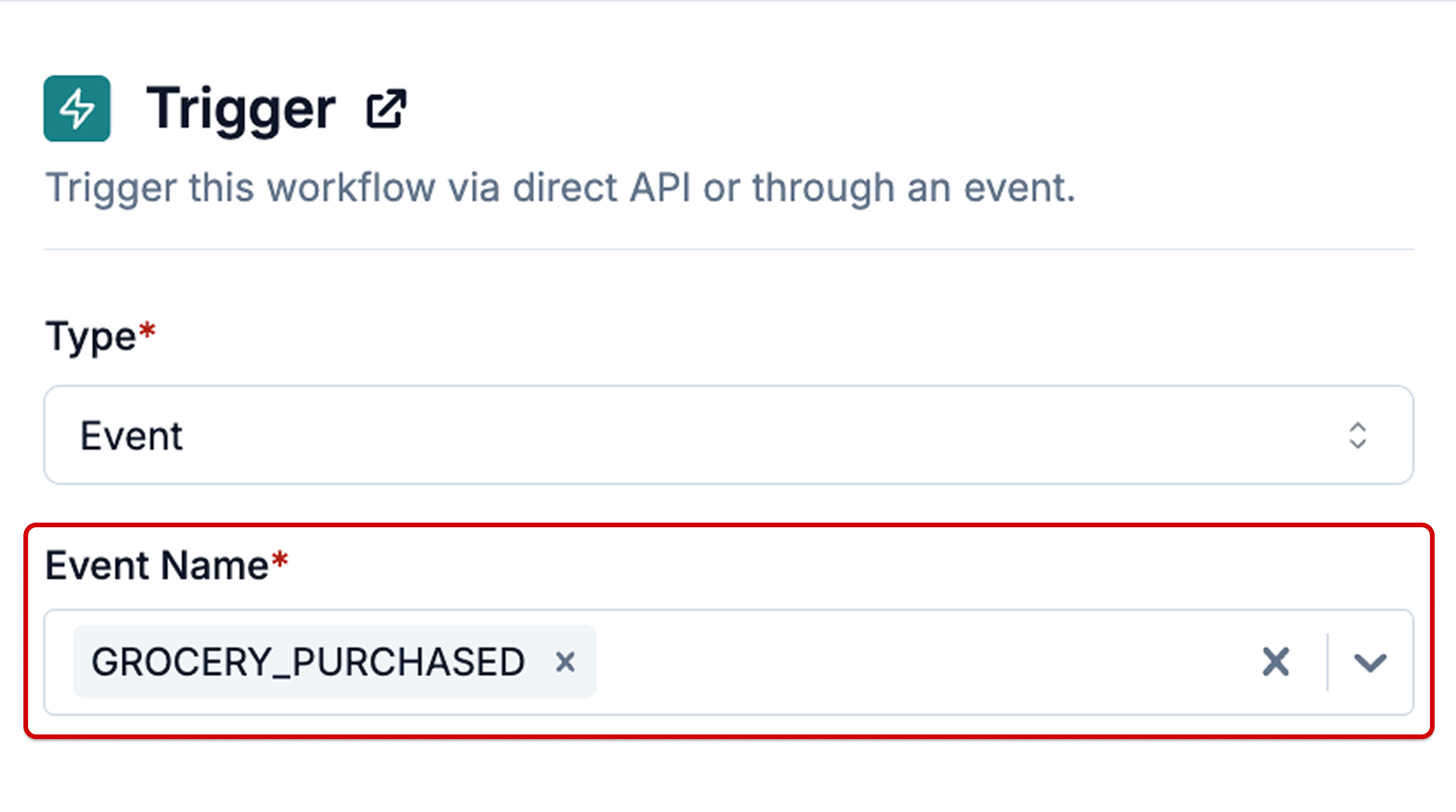
Anatomy of an event
Every event has the same shape, regardless of which SDK or API you use to send it.distinct_id— the user the event belongs to. The user must already exist in SuprSend (see Users); events for unknown users are silently dropped.event_name— a string likeorder_placedorPAYMENT_FAILED. This is the exact string a workflow matches on. Use past tense and keep casing consistent across your codebase — the value is case-sensitive.properties— a JSON object with data about the event (order_id,amount,plan_name). These become variables you can reference in workflow templates as{{order_id}}and use in branch conditions.tenant_id(optional) — routes the event through a specific tenant’s templates, branding, and preferences. Use it for B2B products where every workspace has its own look and feel.idempotency_key(optional) — a unique string to dedupe retries. SuprSend rejects a second event with the same key within a 24-hour window. Always set this for critical notifications so a retry storm doesn’t send the same message twice.
How to send events
Pick the path that matches where the event originates in your stack.Client-side SDK
Send directly from web or mobile apps with the JavaScript, React, iOS, Android, React Native, or Flutter SDK. Best for UI interactions you already track for analytics — for example,
product_added_to_cart fired from the storefront.HTTP API
Call the Track Event API directly. Best for languages without a SuprSend SDK, or from serverless functions and webhooks — for example, forwarding a Stripe webhook as
subscription_renewed.Third-party connector
Route events already flowing through a CDP like Segment into SuprSend without adding a new integration in your backend. Best when your event pipeline is already in place — for example, mirroring every
Order Completed event from Segment.When to use events
Reach for events (instead of the direct workflow API) when:- Notifications map to user actions. For things like
post_liked,comment_added,order_placed, orfriend_request_sent, the event already exists in your system — you just forward it to SuprSend. - One thing that happened should trigger several notifications. An
order_placedevent can fan out to an order confirmation for the buyer, a new-sale alert for the seller, and a summary line in the ops team’s digest — from a single call. - Product or ops teams need to iterate without a deploy. Because the event-to-workflow mapping lives in the dashboard, non-engineers can add new notification workflows, change routing, or swap channels without shipping code.
- You’re already syncing users to SuprSend. Event triggers assume the user profile exists. If you already run a user sync pipeline, events are a clean fit that keep notification triggering decoupled from user upserts.
- You’re integrating via a CDP. If Segment, Rudderstack, or a similar platform already carries your events, route them into SuprSend as a destination — no extra backend integration.
Events vs direct workflow triggers
Events aren’t the only way to trigger a workflow. You can also call the Trigger Workflow API directly with aworkflow_slug. The two are complementary; most teams use both.
For the full comparison, including failure modes and hybrid patterns, see Event vs Workflow API.
Key behaviors and constraints
- Silent drops for unknown users. If the
distinct_idon the event doesn’t exist in SuprSend, the event is discarded without an error in the API response. Sync users first, and monitor the Requests log for dropped events. Alternatively, use the Trigger Workflow API which upserts the user inline. - Reserved prefixes. Event names and property keys must not start with
$orss_— those namespaces are reserved for SuprSend’s system events and internal properties. - Fan-out is automatic. SuprSend runs every live workflow whose trigger matches the event name. To stop a workflow from firing on an event, disable or delete it — there’s no per-event routing rule to update.
- Idempotency window. Events sharing the same
idempotency_keyare deduplicated for 24 hours. Set the key for every retryable trigger. - Payload validation. Attach a JSON schema to the event so malformed properties are rejected at the API layer instead of surfacing as template render errors downstream.
- Recipient overrides. By default the event’s
distinct_idis the recipient. To send to a different user, an object, or a set of users derived from event properties, use the workflow’s override recipient setting.
System events
SuprSend emits a few reserved events automatically. You don’t send these — you trigger workflows on them.$USER_ENTERED_LIST— fires when a user joins a list. Use it for welcome flows or onboarding sequences.$USER_EXITED_LIST— fires when a user leaves a list. Use it for win-back or offboarding flows.
FAQ
Why isn't my workflow firing on an event?
Why isn't my workflow firing on an event?
The three common causes: (1) the user’s
distinct_id doesn’t exist in SuprSend, so the event was silently dropped — check the Requests log; (2) the event name in your code doesn’t match the workflow’s trigger exactly (event names are case-sensitive); (3) the workflow is in Draft and hasn’t been committed. Commit the workflow and verify from the dashboard’s Logs → Executions view.Do I need to declare event names anywhere before sending?
Do I need to declare event names anywhere before sending?
No. Event names are free-form strings. SuprSend starts tracking a new event the first time it sees one, and it becomes selectable as a trigger in the workflow editor. For type safety, define a JSON schema for the event’s properties.
Can one event trigger more than one workflow?
Can one event trigger more than one workflow?
Yes. Every live workflow whose trigger matches the event name runs. This is the recommended way to fan a single business event out to multiple notifications — for example, buyer confirmation, seller alert, and ops summary from one
order_placed event.What are the naming rules for events and properties?
What are the naming rules for events and properties?
Event names are case-sensitive strings; keep casing consistent across your codebase. Property keys should be valid JSON keys. Neither event names nor property keys can start with
$ or ss_ — those prefixes are reserved for SuprSend’s system events and internal properties.Can I send an event to an object instead of a user?
Can I send an event to an object instead of a user?
Not directly — an event always carries a user
distinct_id. To notify an object from an event, use the workflow’s override recipient setting to point at an event property that holds the object_type and object_id. For direct object targeting without an intermediary user, use the Trigger Workflow API instead.How do I stop a workflow from firing on an event without deleting the workflow?
How do I stop a workflow from firing on an event without deleting the workflow?
Disable the workflow from the workflows list. It stops matching new events immediately; re-enable to resume.
Next steps
Design a workflow triggered by an event
Wire an event name to a workflow’s trigger node and route it to channels.
Validate event payloads with a schema
Reject malformed events at the API layer before they hit your templates.
Track events from Segment
Route events from your CDP into SuprSend without a new backend integration.
Track Event API reference
The full request and response schema for the HTTP endpoint.