
Add vendor details based on workspaces
You may have different vendor accounts for staging and for production. Hence, we have given an option to add vendors based on your workspaces. Make sure that you add vendor details for each workspace, else communications will fail to deliver.Add vendors based on communication category
In some of the communication categories like email and sms. We have given an option to add vendors based on communication category. At SuprSend, we have defined 3 types of communication categories: System, Transactional and Promotional. You can read more about these categories here. You can add different vendors for these categories, or have different accounts from the same vendor, depending on your need.Sandbox mode
You don’t have to add your vendor details in Sandbox workspace. For ease of testing, we have integrated SuprSend’s vendor accounts in Sandbox workspace.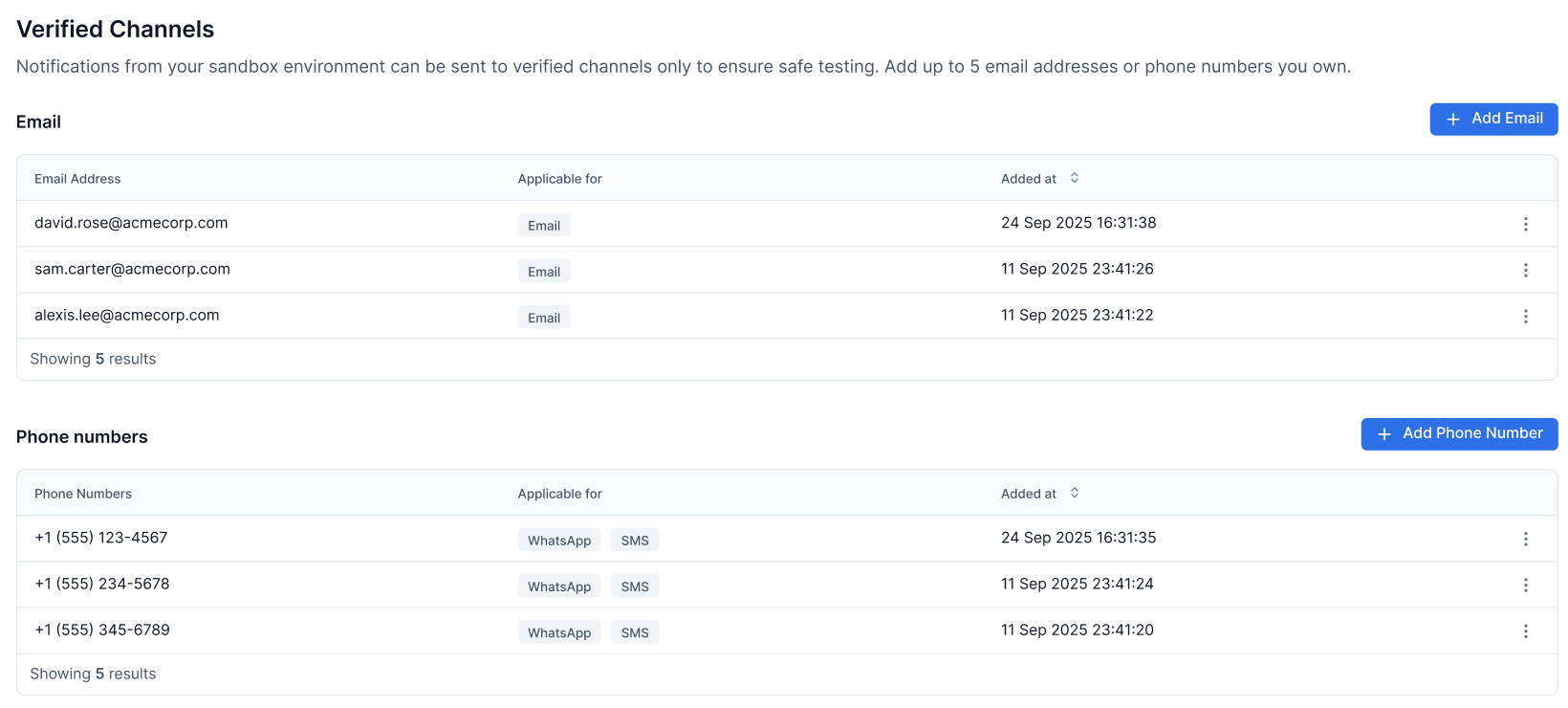
Channel limits in Sandbox
To prevent accidental spam, Email, SMS, and WhatsApp notifications in Sandbox can only be delivered to verified channels. You can set up to 5 verified channels per channel type:- Email: Up to 5 email addresses
- SMS: Up to 5 phone numbers
- WhatsApp: Up to 5 phone numbers
- Slack, Teams, Inbox, and Push: Unrestricted