Mailgun integration on SuprSend account
On the SuprSend dashboard, go to vendor page from side panel and click Email -> Mailgun from the list of Vendors. This will open vendor details page as shown below: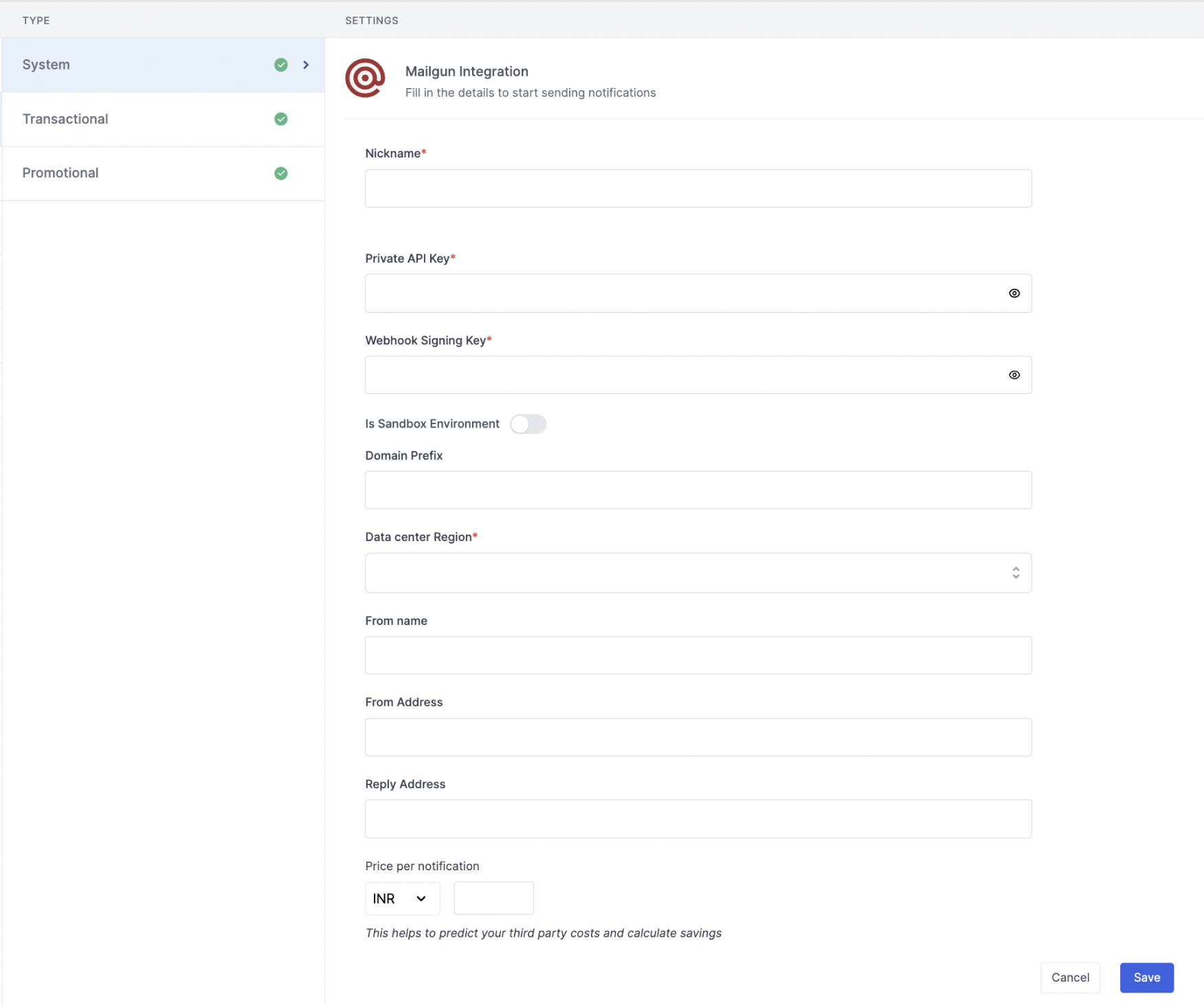
How to get API Key from Mailgun account
Once logged in to your Mailgun account, navigate to API Security from your profile.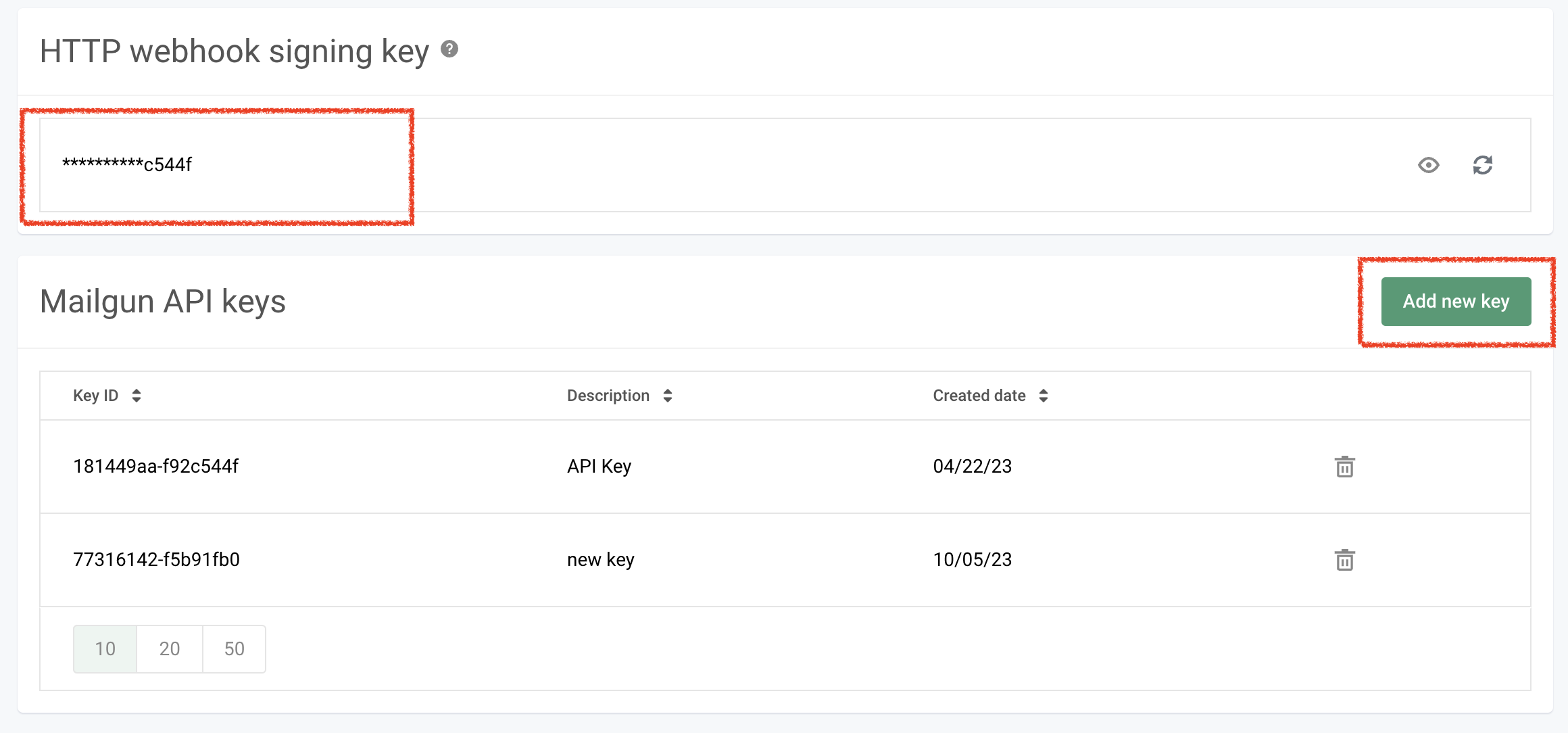
Setting callback URL in Mailgun account
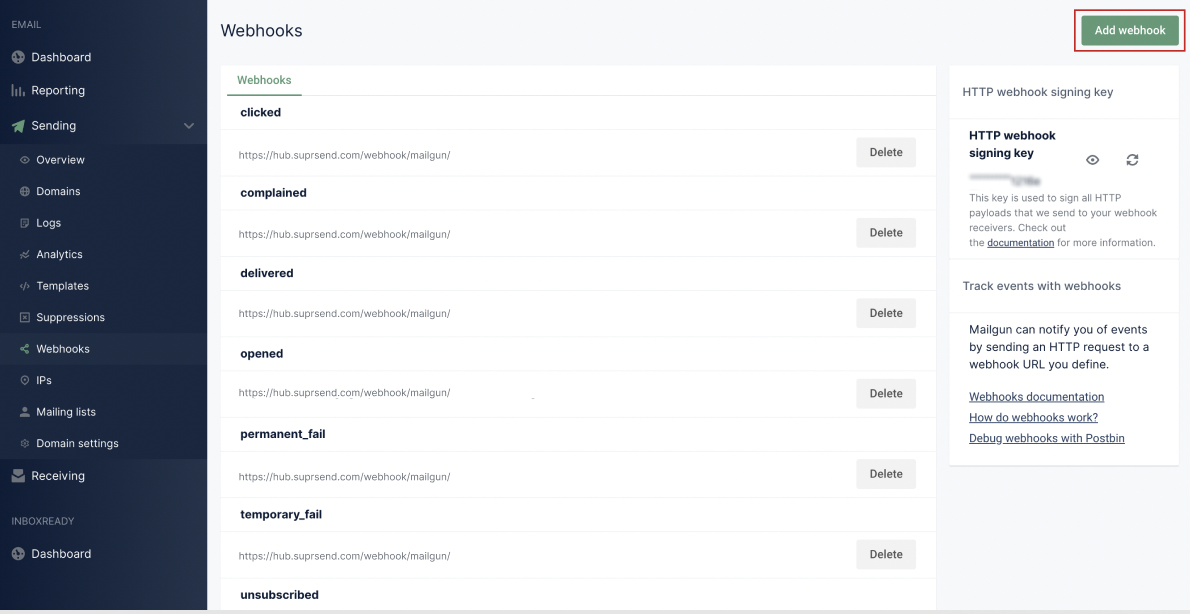
One of the platform advantage of using SuprSend as a central communication system is that it shows notification analytics for all channels in your SuprSend account together. Go toSending->Webhooks->Add webhook
Add below URL for all event types (Delivered Messages, Clicks, Opens, Spam Complaints, Permanent Failure, Temporary Failure)
URL: https://hub.suprsend.com/webhook/mailgun/
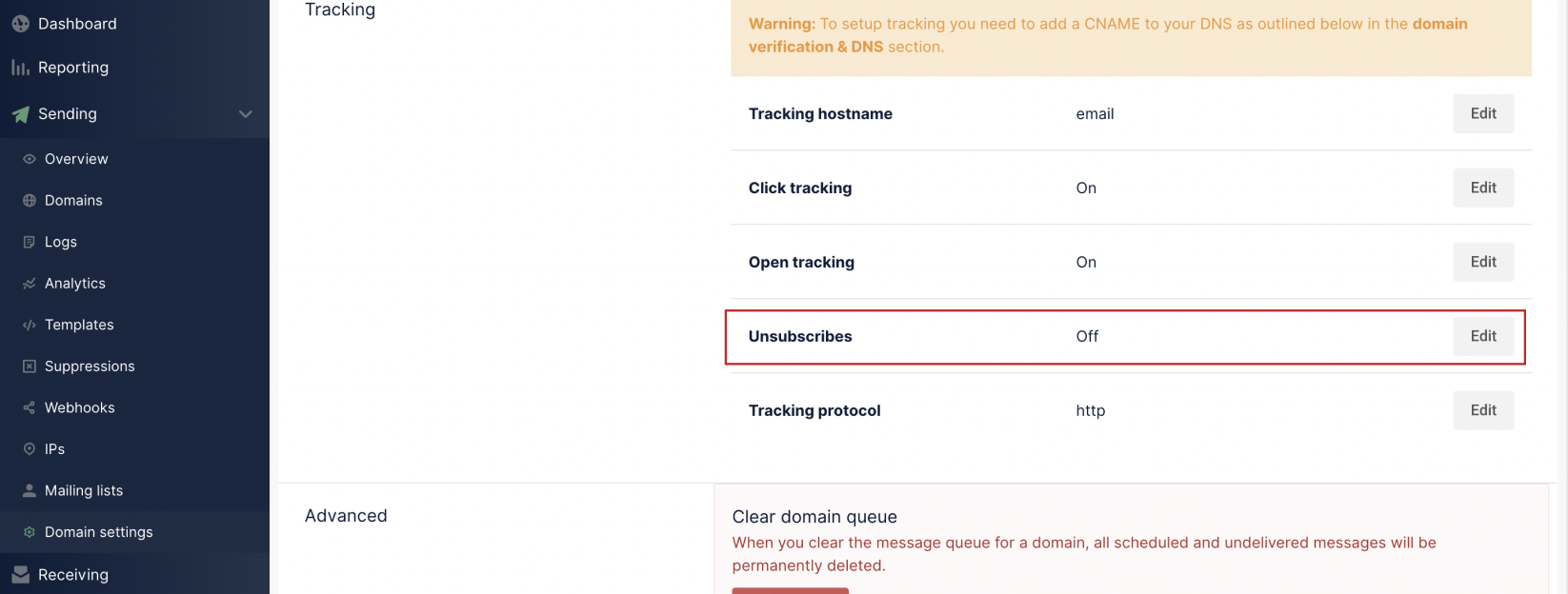
You can add “Unsubscribe” link to your email by enabling Unsubscribes in Sending -> Domain settings (Tracking section)
How to add Unsubscription link in email
It’s recommended to allow recipients to unsubscribe from emails. You can either:- Use your vendor’s unsubscribe link by enabling Unsubscribes in Sending → Domain settings (Tracking section). This opts users out of all emails from that vendor.
- Use SuprSend’s hosted preference page for more granular control, allowing users to manage preferences per category while also reducing unnecessary vendor API calls for opt-outs.